Get up and running with SetClick Pro in 4 easy steps!
Step 1: Open the App
Click Launch App from any page or navigate to your installed PWA icon. The app opens instantly, no signup required! You can always open or reinstall SetClickPro at Setclickpro.com.
💡 Installation Options
Install to home screen: iPhone/iPad (Safari: Share → Add to Home Screen | Chrome: Share button top right → Add to Home Screen), Android (Chrome Menu → Install App), Desktop (Chrome/Edge install icon). Or bookmark in browser: Both methods work great! Installation gives you an app icon on your home screen, while bookmarking keeps it accessible from your browser tabs.
Step 2: Add Your First Song
- Click “Manage Songs” from the home screen
- Click the “+ Add Song” button
- Fill in the song details:
- Title (required)
- Artist
- Duration (Minutes and Seconds)
- Tempo/BPM (20-300)
- Modified Tempo (optional – for real-time adjustments)
- Click “Save Song”
💡 Pro Tip: Use Spotify Lookup
Click “Lookup Song Data” to search Spotify and auto-fill song details! Search by title and/or artist, select the correct version, and the details populate automatically.
Step 3: Create a Setlist
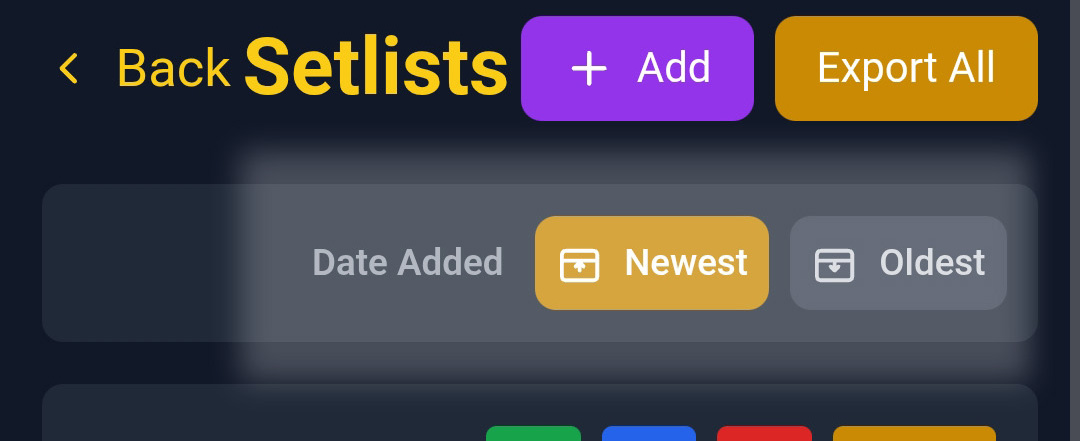
- Return to home and click “Manage Setlists”
- Click “+ Create Setlist”
- Enter a name (e.g., “Friday Night Show”)
- Click “Save”
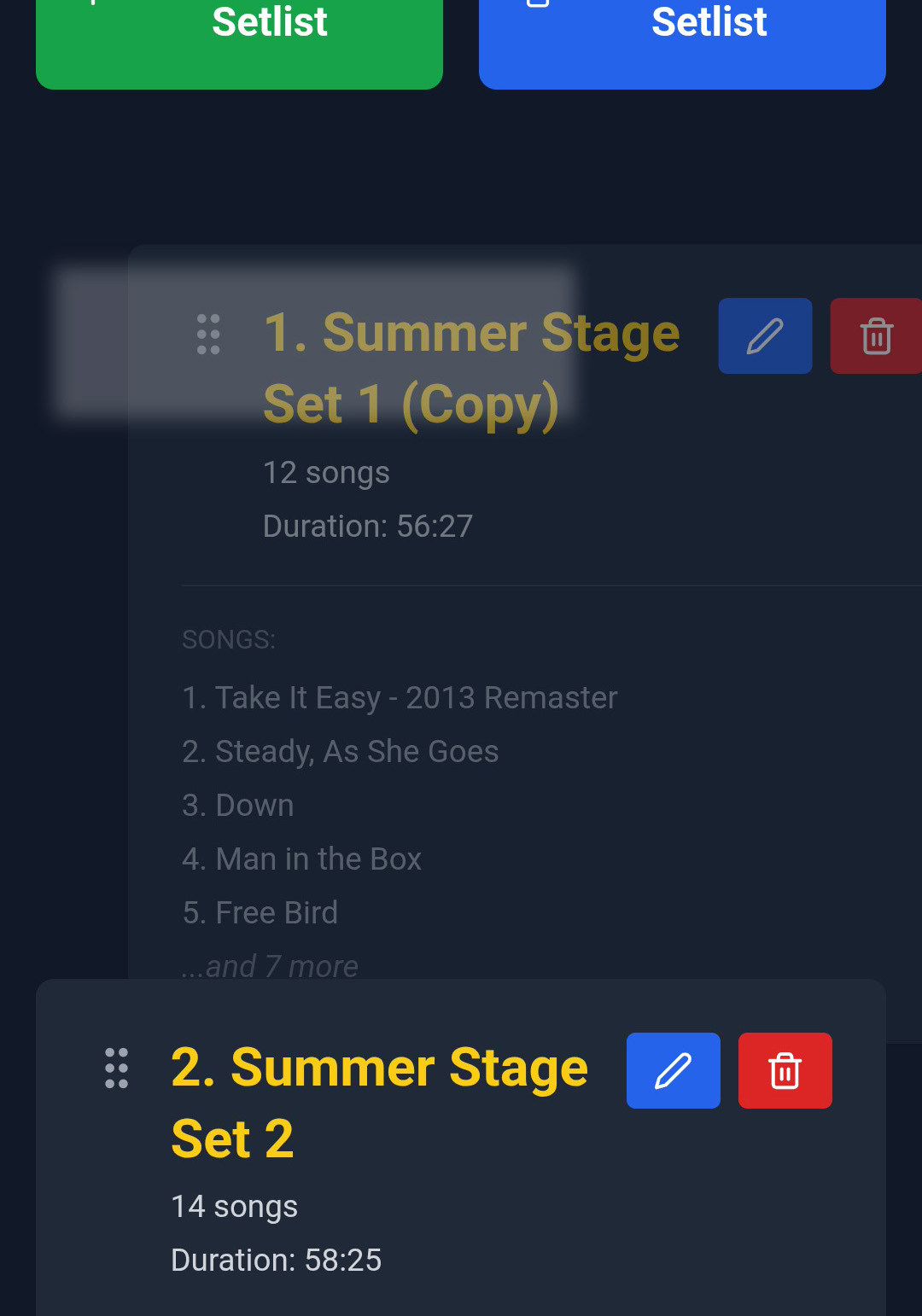
- Click your new setlist to open it
- Click “Add Songs” and select songs from your library
- Songs are removed from the “Available” list as you select them
- Drag songs to reorder them
Step 4: Play Your Setlist
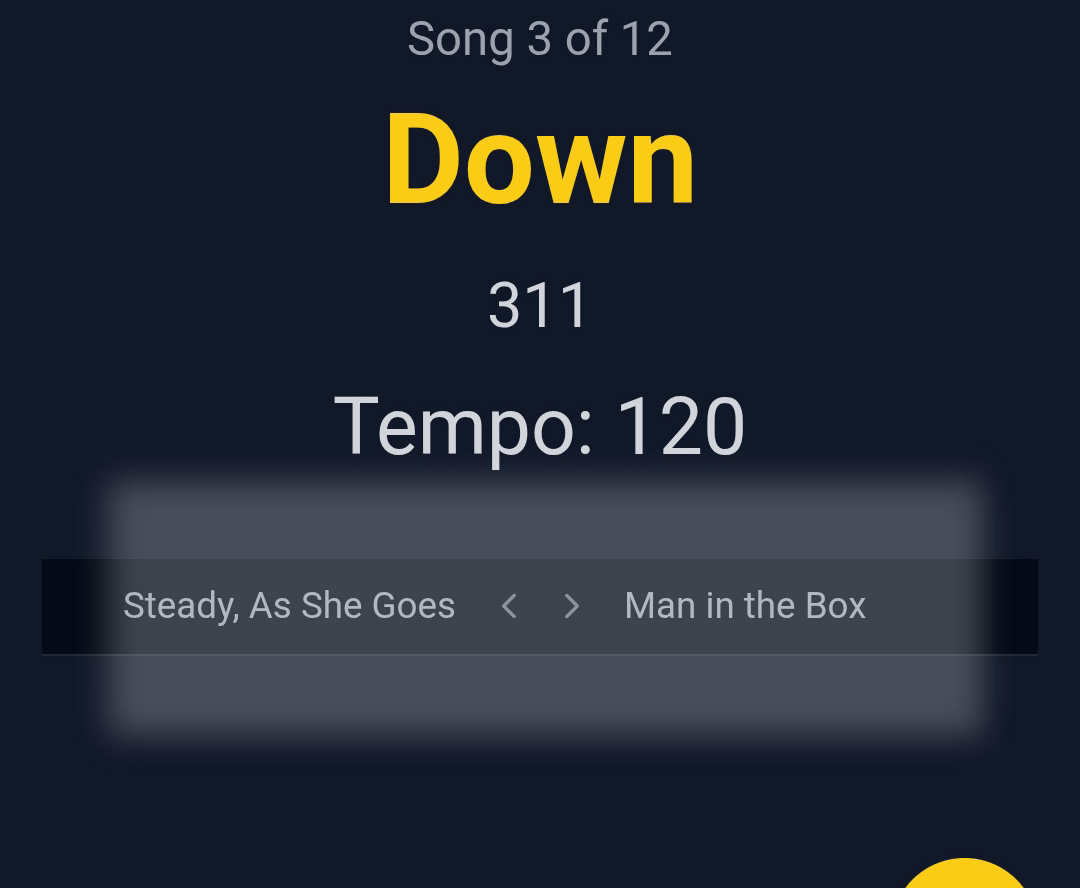
- From the home screen, click “Play Setlist”
- Select the setlist you want to perform
- Playback begins immediately – ready to start!
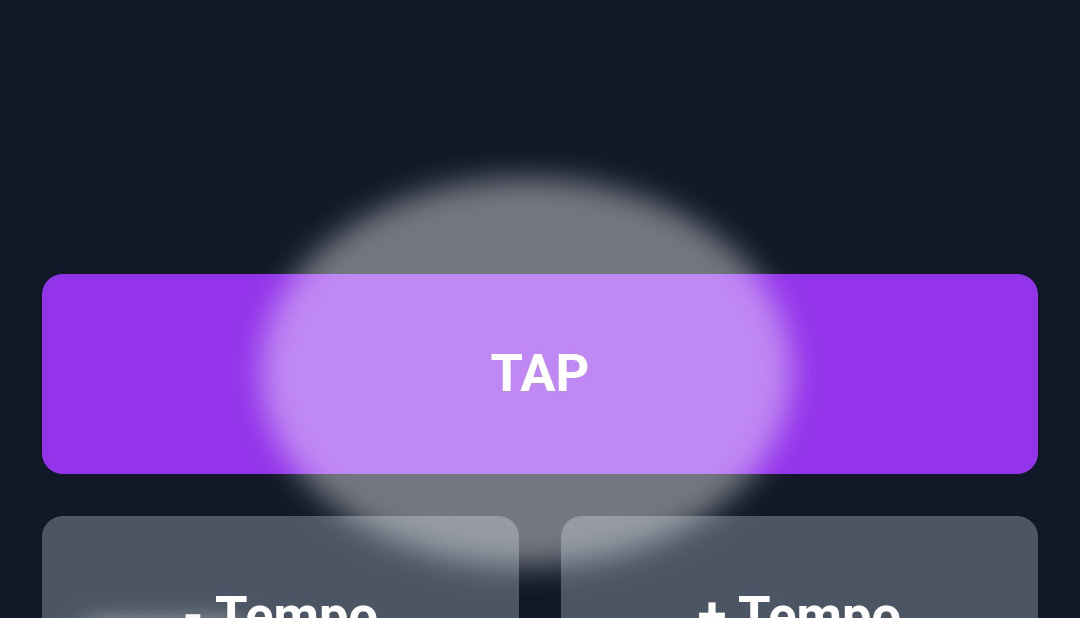
- When ready, press the “START” button to begin the click track
- Use Pause, Stop, Prev or Skip as needed
✅ You’re All Set!
You now know the basics! Continue reading for detailed guides on all features, or jump to specific sections using the navigation on the left.